 Peaberry
Your AI agents keep the Mac awake while they work.
When the last one is done, sleep goes back to your macOS settings. No more switching sleep off just in case, and no more work dying halfway because nobody touched the keyboard.
Coming soon to the Mac App Store
Get Peaberry on the Mac App Store
For macOS 15 or later, on Apple silicon and Intel.


Let the agents ask
macOS sleeps when nobody touches the keyboard. An agent working through a long task doesn't touch it either, so the Mac reaches its idle timer and sleeps in the middle of the job, and the session goes with it. With Peaberry the agent asks for exactly the time its work needs.
# keep the Mac awake for exactly as long as this build runs
open "peaberry://hold?pid=$$&id=claude&reason=build" && ./build.sh
# the shell exits, the hold ends: nothing to release- Every hold ends on its own
- A hold is tied to a process, or to a number of minutes, 24 hours at most. If an agent crashes or forgets to clean up, its hold still ends, within seconds of the process exiting.
- Several agents, one Mac
- Each agent holds its own lease under its own name, up to 16 at once. The same name replaces that hold; different names sit side by side. The Mac stays awake while any of them is working.
- The switch is yours
- Agents can only ask. Letting them is a switch in Settings › AI agents, and no command can turn it on. Until you decide, the first request in Smart control is let through for up to 15 minutes so the work isn't lost, with Stop and Always allow right there in the panel. Every hold has its own Stop button.
- Cheap to check on
--briefanswers in one line.--waitblocks until something happens (a hold ends, the battery runs low or drops to your floor, Peaberry quits) and then prints one line; a one-minute wait measured 0.03 seconds of CPU.- Wraps up before the battery does
- On battery at 20% or with 20 minutes left, an agent that checks in is told to bring its work to a stopping point, release its hold and tell you how far it got. When the battery drops to 10%, a floor you can change in Settings › General, Peaberry lets go of every hold, agents' included, so the Mac can sleep before it runs out. Agents that check in are told to save their work now and tell you; their holds take effect again once you plug in.
Set up an agent
- Open Settings › AI agents and click Copy prompt.
- Paste it into your agent's chat. It reads the skill file that ships inside Peaberry, installs it its own way, and tells you where it put it. Any agent that can read a file and run a shell command can use it.
- Turn on Let other programs ask over peaberry:// so holds can last the whole job.
The skill tells the agent to take a hold at the start of each session, tied to its own process, so the Mac stays awake while it thinks and lets go when the session ends. If Peaberry isn't running, the agent leaves it alone. When an update brings a newer skill, the agent sees the higher version number and replaces its copy.
$ /Applications/Peaberry.app/Contents/MacOS/Peaberry --brief
running=1 holding=1 scene=system holds=claude-1940,render:5380 agent-control=on warnings=none skill=5 age=3
Or let it watch the work
Switch to the Working scene and Peaberry keeps the Mac awake while the processes you name are running, or while the CPU is busy. When the work stops it waits two minutes before letting the Mac sleep, so the gap between one job and the next doesn't count.
- Matches what you actually run
- Process names,
argv[0], script file names, PIDs and wildcards.train.pymatchespython3 /work/train.py --epochs 10;python*matchespython3.12. You can also pick from the apps that are running. - Shows what matched
- The panel lists every matching process with its PID and CPU, so you can see the rule is doing something instead of hoping it is.
- Busy means busy
- The CPU rule uses a 15-second average across all cores, against a threshold you set. The panel shows the live reading so you can pick a sensible one.
- Only looks when it needs to
- Processes are listed only while a rule needs them. In Smart control, Peaberry reads the system CPU every three seconds and nothing else.
Four scenes
One scene runs at a time. Pick one in the panel, or duplicate any of them and make it your own.
-
Smart control
DefaultSleep follows your macOS settings. The only thing that keeps the Mac awake is an AI agent's request.
-
Working
While work runsAwake while the processes you name are running or the CPU is busy, then two more minutes.
-
Presenting
2 hoursThe display stays on and the desktop is hidden behind your wallpaper, a gradient or a colour.
-
Leaving it running
8 hoursFor downloads, exports and backups you walk away from. The display may sleep.

On a Mac with a battery, a scene can be set to work only while plugged in: on battery it keeps nothing awake from the moment you unplug, though agents' requests still work. A scene that watches for work can also stay awake while an external display is connected, for a MacBook docked at a desk with the lid open or closed. On a Mac with no built-in display, such as a Mac mini or Mac Studio, it never applies.
Five minutes before a timed scene ends, a notification offers 30 more minutes. A global keyboard shortcut can start one and stop it; it stays off until you turn it on.
Why is my Mac still awake?
Or why did it fall asleep? The Diagnostics tab in Settings answers both, one line per answer, before you go looking.
- What Peaberry itself is holding, and which rule or agent asked for it.
- Every other app keeping the Mac awake, with system services folded into one row.
- Any sleep that has been scheduled, and who scheduled it.
- The power source, the displays, and how long since you last touched the keyboard or mouse.
- The one case nothing can prevent: a MacBook with its lid closed and no external display.
Nothing to trust
- No network
- The app has no network access at all. The macOS sandbox would refuse a connection if it ever tried one.
- Nothing collected
- No analytics, no account, no tracking. The App Store privacy label reads Data Not Collected. Privacy policy
- No upsells
- No subscription, no in-app purchases, no ads.
- Light on your Mac
- With the bean moving, Peaberry measured about 1.5% of one core; idle in Smart control, about 0.1%. You can turn the menu bar animation off in Settings.
Screenshots
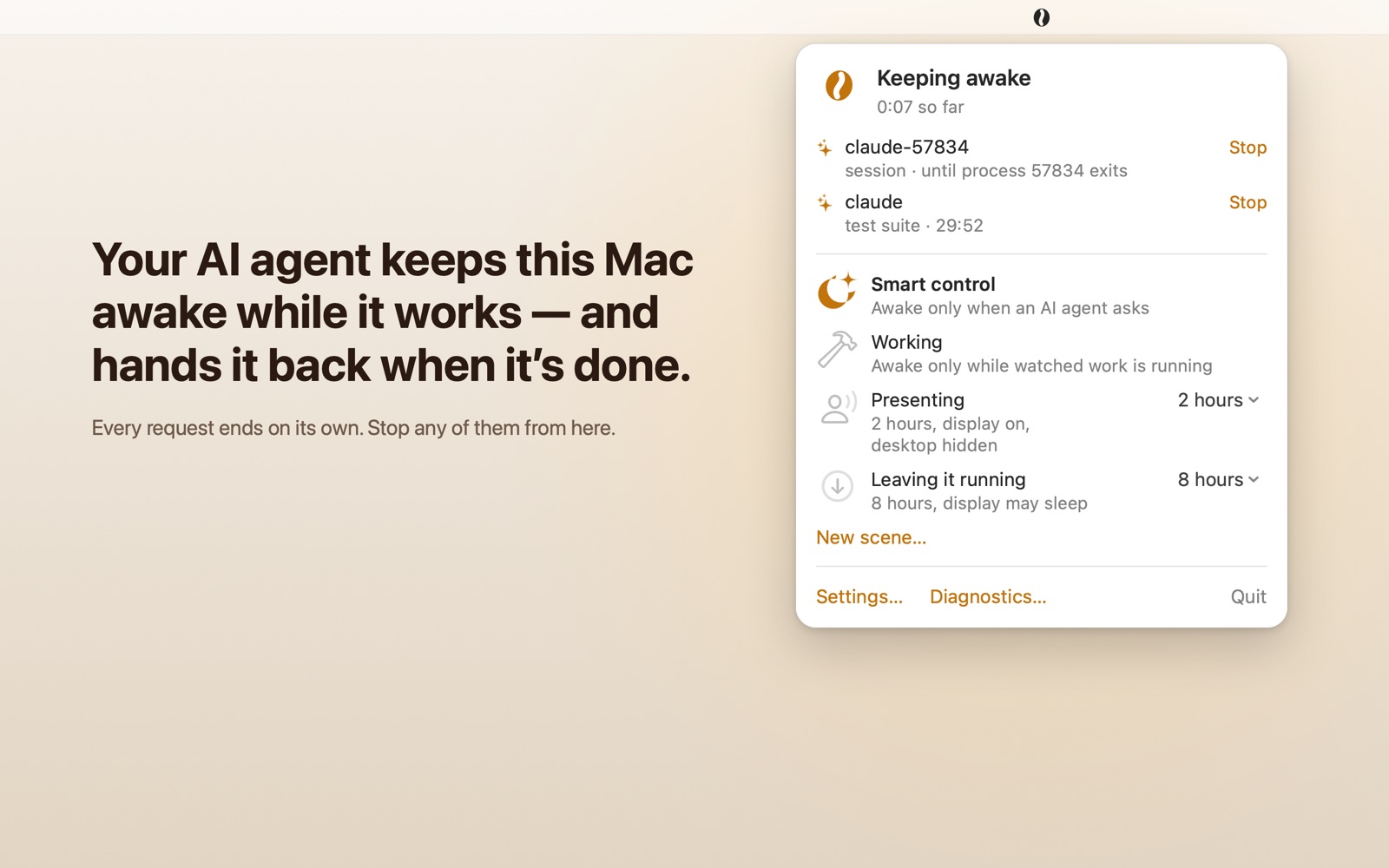
Each agent's hold gets its own row, with the reason it gave and a Stop button. 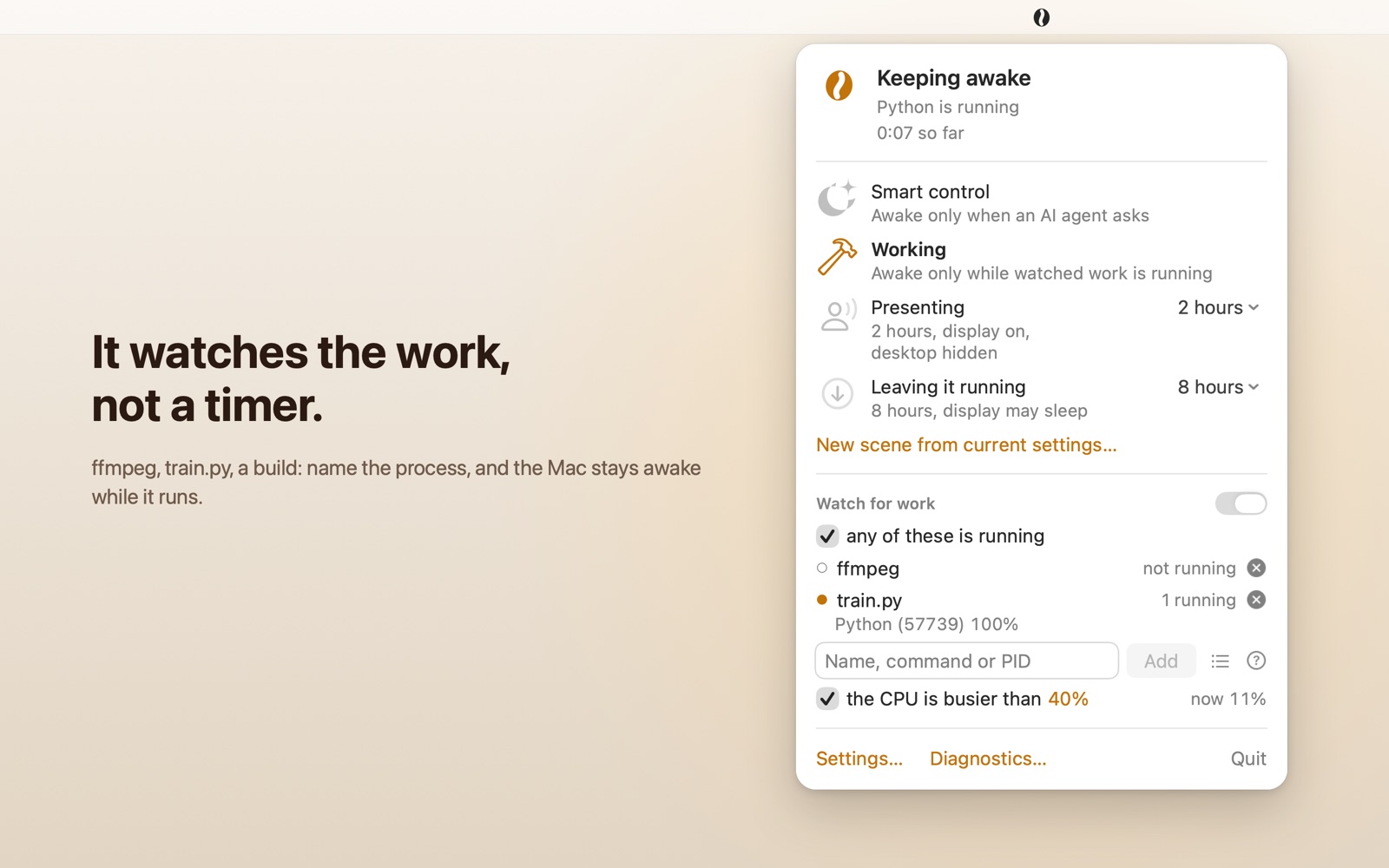
Working: the processes it matched, with PID and CPU. 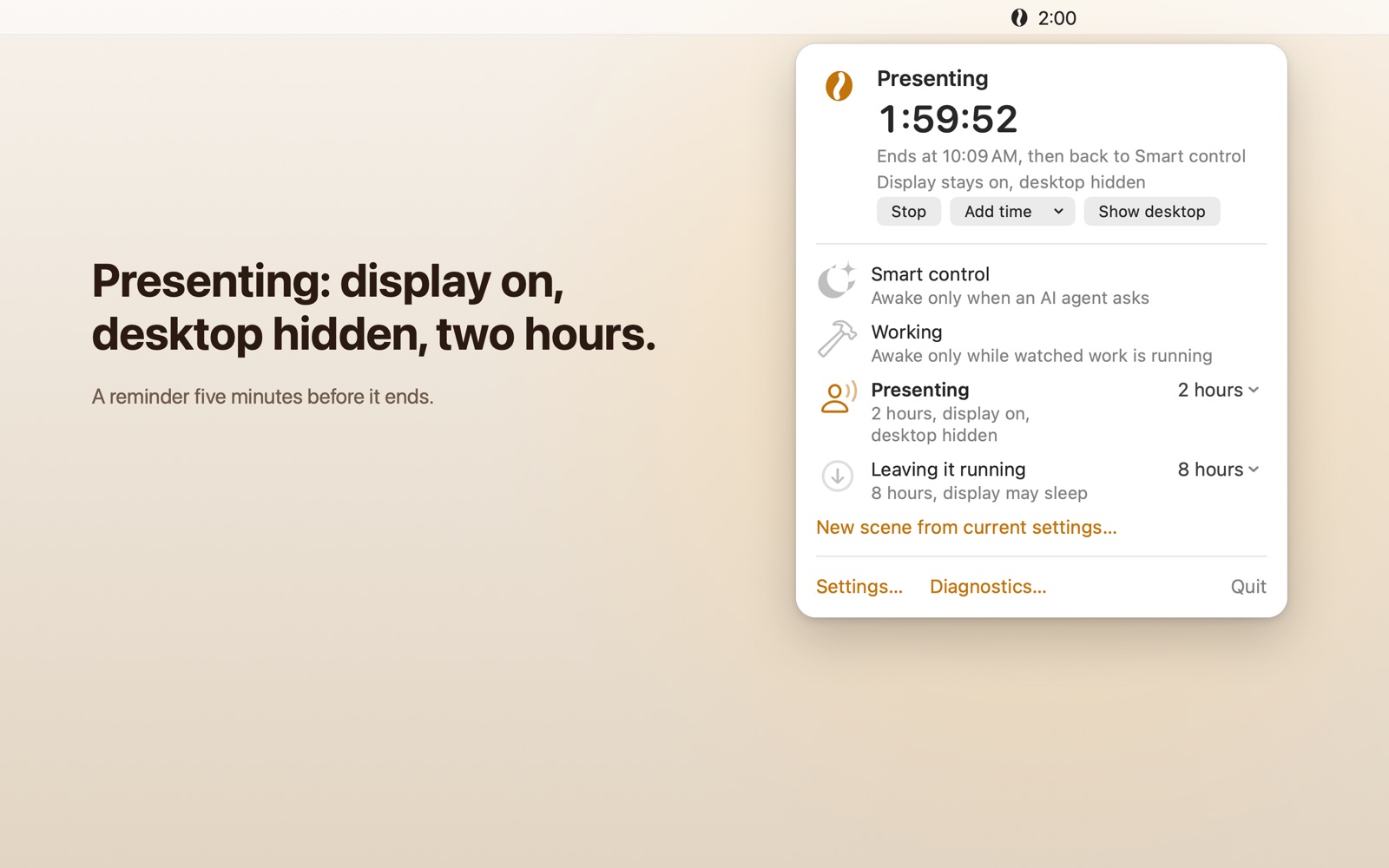
Presenting: display on, desktop hidden, two hours. 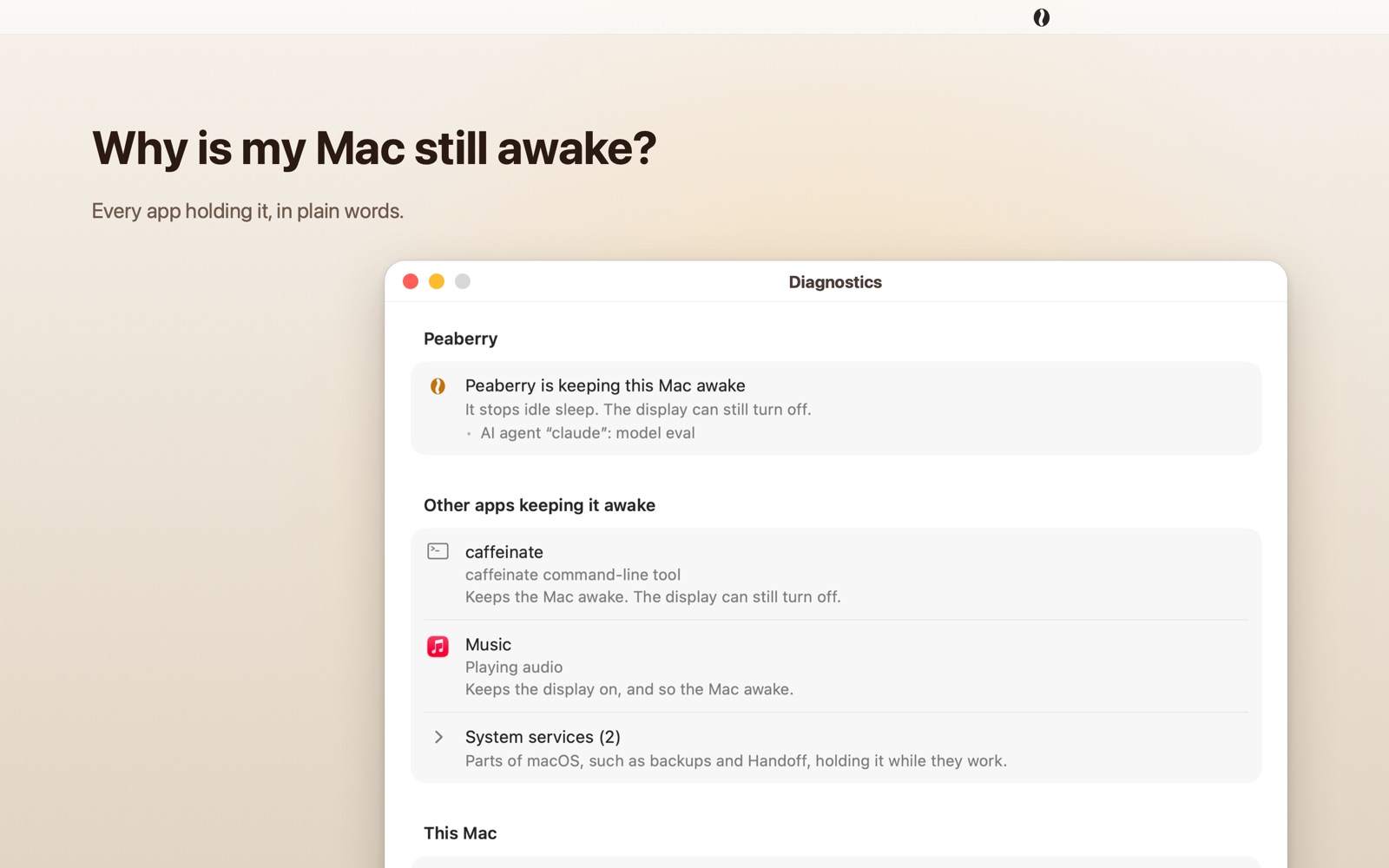
Diagnostics: everything keeping the Mac awake, and why. 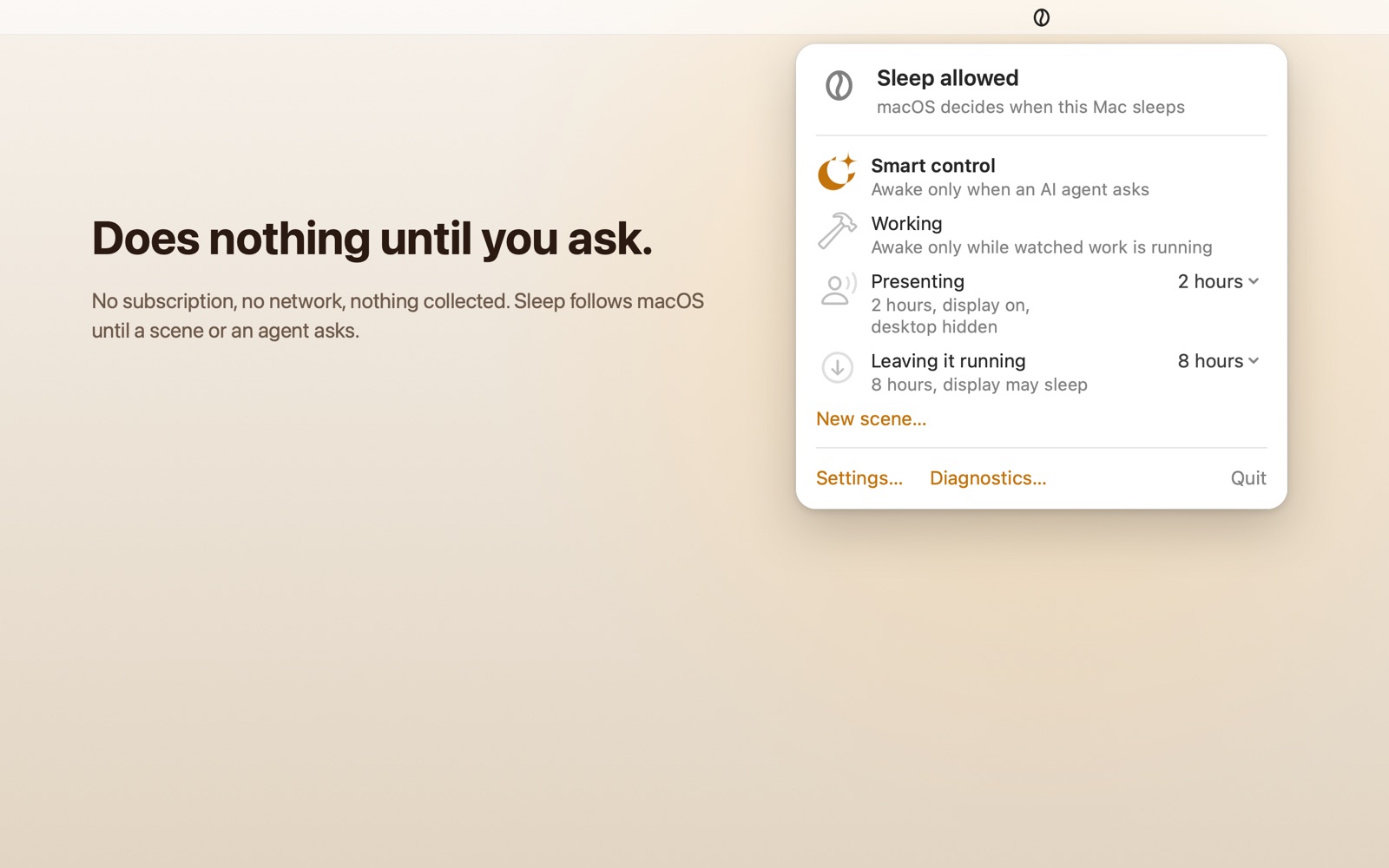
Smart control: sleep follows macOS until an agent asks.


Requirements
- macOS
- macOS 15 Sequoia or later.
- Mac
- Apple silicon or Intel. One universal app.
- Languages
- English, 繁體中文, 日本語, Español.
- Where it lives
- In the menu bar, with no Dock icon. The first launch opens a short welcome window, which can add Peaberry to your login items if you leave that box ticked and click Done.
- Accessibility
- VoiceOver reads the menu bar item's state, such as “Peaberry, keeping awake”.
- Limits
-
- A MacBook with its lid closed and no external display still sleeps. No App Store app can change that.
- Peaberry stops idle sleep. It doesn't cancel sleep that someone has scheduled.
- Processes owned by other users, such as root, match by name only.
Support
Questions, bugs and requests go to the issue tracker on GitHub. Peaberry's source code isn't published; that repository holds this website and the issues.
Read the privacy policy.
Coming soon to the Mac App Store